
Here’s a quick tutorial showing how to make your illustration/graphics look like they’re printed. This is pretty much the same as the first tutorial, only we’ll be using different textures for the image than the background. For this example I’m re-creating my Cookie’s Plonk desktop wallpaper.
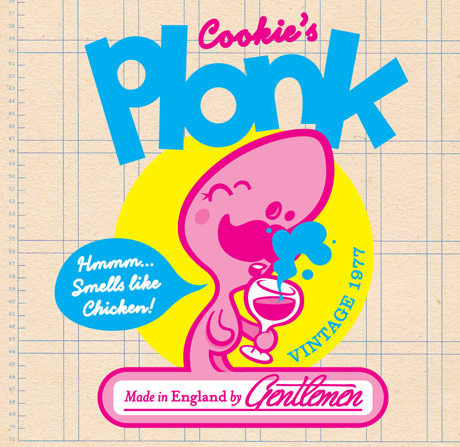
This is our starting point, check here to download the Photoshop file I’ve used.
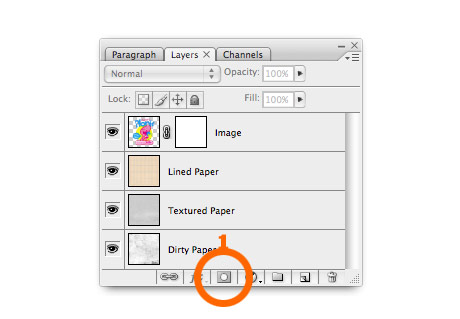
1. Create a layer mask. Open the image you want to look printed. If you want you can download the image I’ve used here. Click the mask button on the bottom of the layer panel (1).
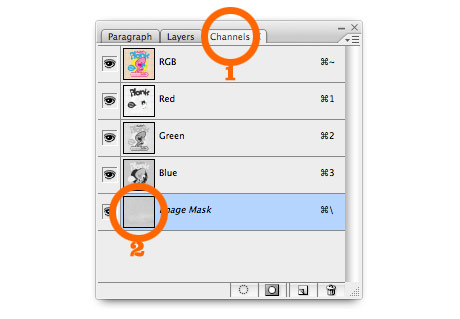
2. Add some paper texture. If you’re using my photoshop file, select the Textured Paper layer and copy it. Then re-select the image layer and click the channels tab (1). Select the bottom layer (alpha channel) and paste in the texture (2).
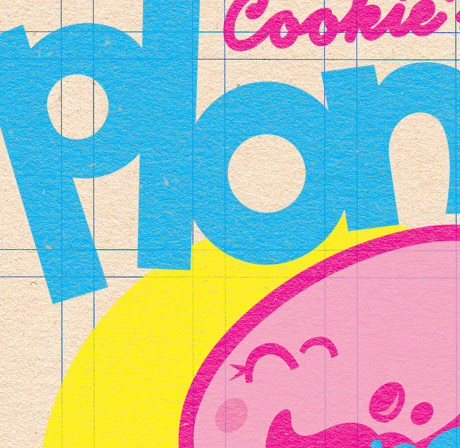
Return to the layers tab, and click the image layer. You can see above that the flat colour illustration now has the texture of the paper.
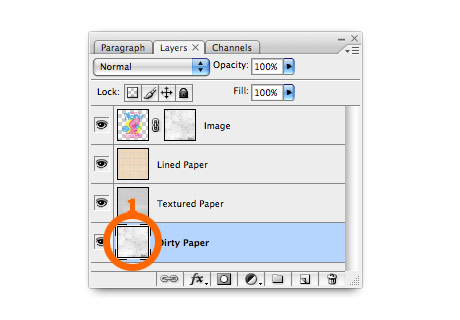
3. Add some wear & tear. To make it look a bit more realistic you might want to add some extra wear and tear. First you need to apply the first mask, select from the menu Layer > Layer Mask > Apply. Then repeat step 2 but use the dirty paper layer instead of textured paper this time.
The finished image:
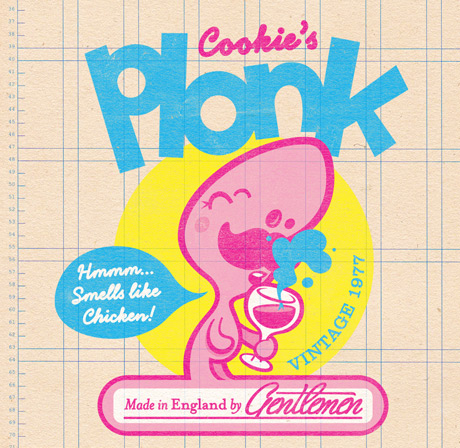
Here’s the finished image! If you quickly scroll up and quickly compare it to the starting point – it’s good at taking the edge off crisp vector graphics, making them look warmer, friendlier & more real I think.
this is a classic tip! thanks cookie
Hugs!!! Thank you for this tutorial.
:o) Anna
I just wanted to let you know that I just ran across this tutorial while looking for something almost completely unrelated, and it was just what I’d been looking for but didn’t know it! :P Awesome, thanks!
Strange, I can’t repeat. :(
Many thanks for tutorial. I plan to make a promo image for new serif font and searching a good example how to make printed effect. Thanks again.
Thanks, great tip.
I made the tutorial and I think the result is better if at the end you change the drawing layer style to multiply.
Nice tutorial Cookie, I am new to illustrator and this is really helpful.
Lately I’ve been trying to look for a branding for myself. I would love to have the wash texture (look) in my overall brand but couldn’t fine the right tutorials to give me the best results.
Thanks to you I think I will be getting closer to solidifying the wash look I’m looking for in my personal design.
Thanks Cookie. Great Tut.
Pingback: Monster-Munch How to: Cookie’s Texture Tutorials
Hello Cookie
Thanks for the tutorials again
Everything here is quality stuff:)
G
Cheers James, I’m working on another one now :) Just checked out your site, holy crap you wrote a book about cooking with booze, I love it!
Hey Cookie – been reading your blog for a while and really admiring your work, so thanks very much for these tutorials! Please do keep them coming whenever you have a mo… James
Pingback: Made in England by Gentlemen Masks & Textures Tutorial